WEBINARS
JOBVIZER CRM VIDEO TUTORIAL
Part 1: Webinars
What Webinars Do
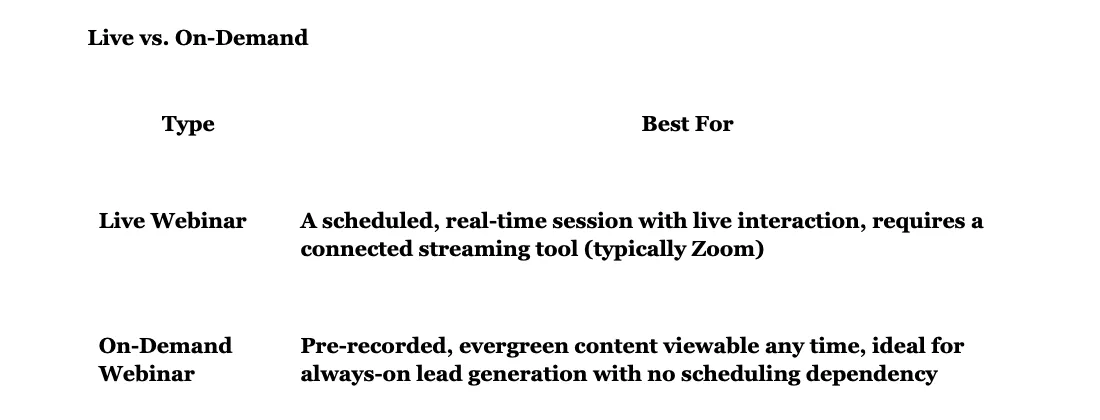
The Webinars feature builds and manages both Live and On-Demand webinar funnels natively, registration, reminders, the broadcast page, and replay access, without needing a separate webinar tool for most standard use cases. It's designed to streamline lead generation, education, and conversion through a single, integrated funnel rather than stitching together a separate registration tool and a separate streaming platform.
Important limitation to set expectations on: this handles the marketing and funnel side of webinars (registration, reminders, page hosting, automation), but actual live video streaming still depends on a connected third-party tool, most commonly Zoom. There is no native live-streaming engine built in. On-Demand webinars, by contrast, run entirely on pre-recorded video with no third-party dependency.
Setting Up a Webinar Funnel
Go to Sites → Webinars → + New Webinar Funnel.
Choose Live or On-Demand.
Enter the webinar details: title, description, and (for Live) date, time, and timezone.
Select or build the registration form (first name, email, and any additional qualifying fields).
Choose a template for the registration, confirmation, and broadcast pages, or build custom pages from scratch.
Save and preview the full flow before publishing.
Always double-check the timezone during setup. A misconfigured timezone on a live session is one of the most common, and most damaging, webinar setup mistakes, since it directly causes no-shows.
Connecting Zoom for Live Webinars
Go to Settings → Integrations, select Zoom, and click Connect.
Sign in and authorize access to Zoom meetings and webinars.
Inside the webinar's settings, choose the connected Zoom account, then select an existing Zoom meeting or let the system create one automatically for this webinar.
Save. Every registrant automatically receives the correct join link tied to that session.
Recurring Webinars
Rather than manually cloning an event and updating dates every cycle, a webinar can be set to repeat automatically on a defined schedule.
Open the webinar's Schedule tab.
Toggle on Recurring.
Choose the cadence (daily, weekly, monthly, or a custom pattern), similar to setting up a recurring calendar event.
Save.
How registrants experience it:
They register once, and the system automatically assigns them to every upcoming occurrence. A single broadcast URL serves the entire series, before each session it shows a countdown, during the session it streams live, and between sessions it displays a "Next session starts in..." message. This keeps the same link evergreen rather than generating a new URL for every occurrence.
Automating Reminders and Follow-Up
Go to Automation → Workflows.
Trigger on Webinar Registered.
Add reminder steps (commonly 24 hours before, 1 hour before, and "starting now").
Add a post-webinar branch: one path for attendees, one for no-shows, each with its own follow-up messaging.
Gating Replay Access with Memberships
To sell access to a webinar or protect the replay behind a paywall or opt-in:
Go to Sites → Memberships.
Create a new product or course named after the webinar.
Set access levels so only registered or paying members can view the content.
Connect the membership product to a checkout or order form if charging for access.
Once configured, a workflow can automatically grant membership access to attendees, turning a single webinar into a lasting, gated asset rather than a one-time event.
Testing Before Launch
Register as a test user through the live registration page.
Confirm the correct tags are applied and the contact enters the right workflow.
Verify the Zoom join link (or replay link) arrives correctly.
For recurring webinars, confirm the countdown and "next session" messaging display correctly between occurrences.
JOBVIZER MARKETING SUPPORT PORTAL© 2026ALL RIGHTS RESERVED