CUSTOM FIELDS / CUSTOM VALUES / TAGS
CLICK BELOW TO WATCH WALKTHROUGH
This SOP explains how to create, organize, and apply tags, custom values, and custom fields in the platform. It helps team members standardize contact data, personalize communication, and keep records consistent across the system.
TAGS
1.
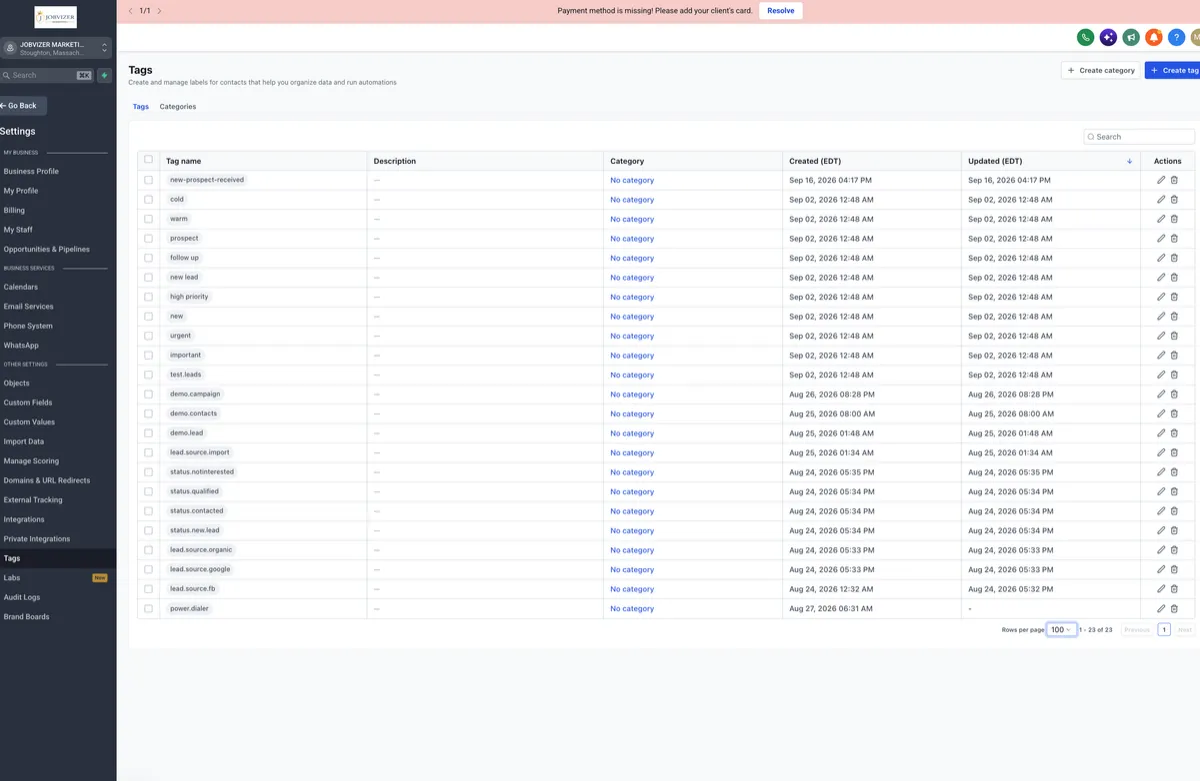
Tags are labels attached to contacts.
Use tags to:
Segment contacts
Filter records
Trigger automations
Think of tags as sticky notes on a contact record.
2.
Use consistent naming for all tags.
Remember that tags are saved in lowercase.
Be specific so tags clearly reflect the source or purpose.
Example tag naming:
lead source fb
lead source google
lead source organic
lead source import
Avoid duplicates because tags are global across the platform.
CUSTOM VALUES
1.
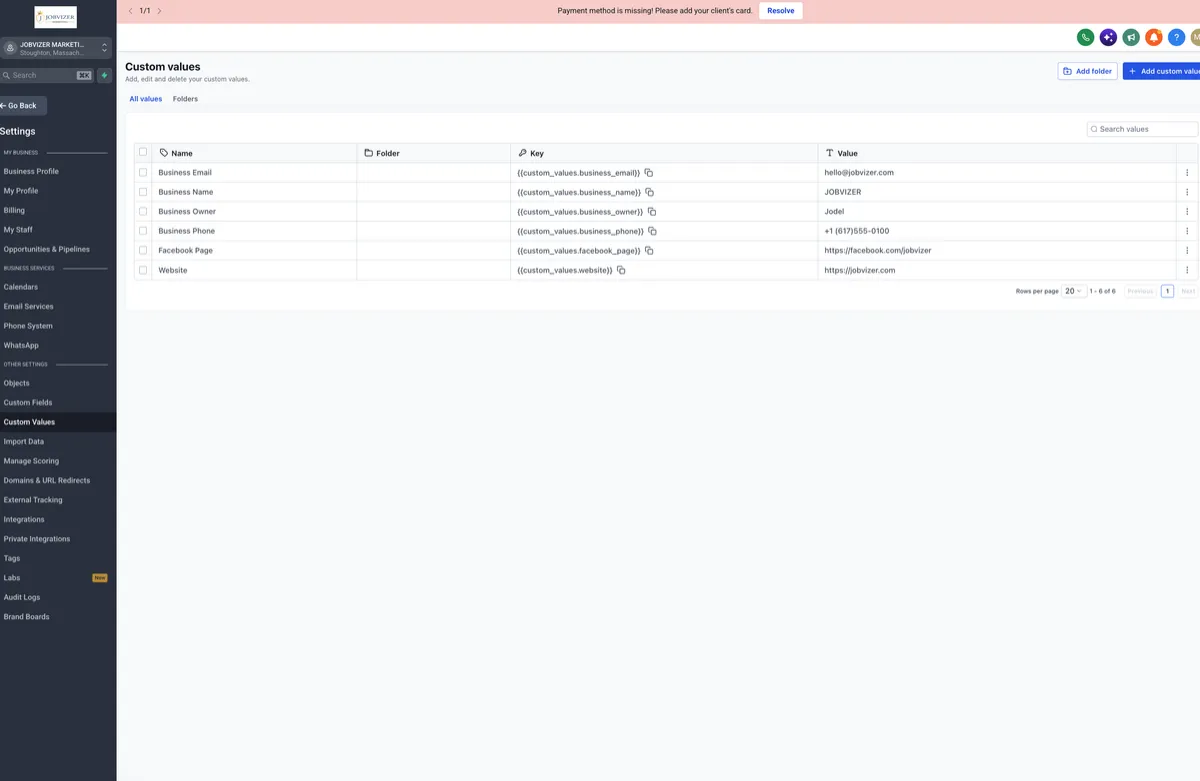
Go to the left menu and select Custom Values.
Custom values are reusable dynamic snippets stored centrally.
When updated once, they update everywhere they are used, including:
Emails
SMS messages
Workflows
Funnels
Best for information that rarely changes, such as:
Business email
Business name
Business phone
Website
Facebook page
2.
Use a custom value when the same text appears in three or more places.
Click Add Custom Value.
Enter the value name and the content it should store.
Example: create a value for the business owner name.
Double-check spelling before saving.
Click Create to save.
CUSTOM FIELDS
1.
Go to Settings and open Custom Fields from the left menu.
Custom fields capture structured data in the platform.
There are two types:
Contact custom fields: store person-specific information
Opportunity custom fields: store deal-specific information
2.
Review the available field types before creating a field.
Common field types include:
Single line text
Multi-line text
Number
Phone
Monetary
Dropdown
Date picker
File upload
Signature
Match the field type to the data you want to collect.
3.
Use contact custom fields for information about the person.
Example: Preferred Contact Method.
Choose a field type such as dropdown.
Add options like:
Call
SMS
Save the field so it can be used on contact records and in messages.
4.
Use opportunity custom fields for deal-related information.
Example: Contacted Status.
Add options that reflect the outcome of a call or interaction, such as:
Answered and interested
Answered and not interested
Voicemail
Save the field so it can be used on opportunity records.
Cautionary Notes
Tags are global, so avoid creating duplicates or overly broad labels.
Tags are saved in lowercase; keep naming consistent across the team.
Always double-check spelling before saving custom values and custom fields.
Choose the correct field type to avoid data-entry issues later.
Remember that custom values are best for information that changes rarely.
Test messages after inserting custom values or custom fields to confirm they populate correctly.
JOBVIZER MARKETING SUPPORT PORTAL© 2026ALL RIGHTS RESERVED