FORMS & SURVEYS
Forms vs. Surveys: Which One to Use
Both use the same drag-and-drop builder, but they're designed for different jobs:
Forms = intent capture. Fast, low-friction, structured data collection. Best when the goal is speed and volume, top-of-funnel lead capture, a simple opt-in, a contact request.
Surveys = qualification and insight. Multi-step, with progress tracking and layered questions. Best when depth matters more than speed, pre-call qualification, detailed intake, or personalized recommendations.
Real-world example: A business using a simple name/email form will book more calls overall, but often wastes time on lower-quality leads. The same business using a short pre-call survey usually books fewer calls, but each one is better qualified, leading to higher close rates because the sales conversation starts with real context instead of a blind cold call.
The platform also supports quizzes, built on the survey framework, useful for gamifying data collection (knowledge assessments, personalized product/service recommendations) since interactive formats tend to see higher completion rates than a flat data form.
Building a Form or Survey
Open the builder from Sites → Funnels/Websites, or directly from the Forms & Surveys section, both funnel/website builders now include an in-canvas editor so forms can be built without leaving the page design flow.
Drag Standard Fields onto the canvas: Full Name, First/Last Name, Phone, Email, Organization, Address, City, State, Postal Code, Country, Website.
Add Custom Fields for anything beyond standard contact info, project budget, preferred contact method, or any other business-specific data point. Supported field types include text input, large text, numerical, monetary, checkboxes, single-select (radio), and multi-select.
For surveys
specifically, break questions into multiple steps rather than one long page, this keeps it feeling guided rather than overwhelming.
Use the Form Picker to reuse an existing form/survey already built elsewhere in the account, rather than rebuilding the same asset from scratch each time.
Save and add the form/survey to the funnel or website page.
How Many Fields to Include
Use only what's actually needed to qualify and route the lead correctly:
Top-of-funnel offers — keep it short, name, email, phone is usually enough (4 to 6 fields total).
Strategy calls or higher-intent offers — use deeper qualification questions, since the extra friction is worth it when the goal is a better-informed sales conversation rather than raw volume.
Selling Products Directly Through a Form
Forms and surveys can now include a full payment step without needing to build the product separately first.
While building the form, open the Sell Products panel.
Select the product, price, or variant (size, duration, quantity) to offer directly within the form.
If a payment processor isn't connected yet, the setup prompt appears right inside the builder, no need to switch tabs to configure it elsewhere.
Save. The form now handles data capture and payment collection in a single step.
Capturing Source Data
Add hidden fields and connect UTM tracking to the form so every submission carries information about where the lead actually came from (which campaign, which ad, which link). Without this, attribution reporting later becomes guesswork.
Connecting to Automation
Every submission, whether a form or a survey, can trigger a workflow. Common actions to attach:
Send an immediate SMS or email confirmation
Update or create a pipeline opportunity
Send an internal alert to the sales team
Add tags based on the answers given, useful for segmenting by qualification level
This is what actually turns a form from a passive data-collector into the entry point of a working sales system, submissions don't just sit in a list, they immediately move the lead forward.
Automatic Submission Records
Every form, survey, and quiz submission automatically generates a stored document (PDF/printable) on the contact's record the moment it's submitted, no manual export or copy-paste required. This captures every field answered, any file references, and the submission timestamp.
Useful for:
Client intake forms — a clean record of exactly what a new client answered, filed automatically
Service agreements or consent forms with an e-signature field — the generated document serves as a record of that agreement, viewable directly from the contact's file history
Using Forms/Surveys Inside Email Campaigns
A form or survey can also be embedded inline inside an email itself, useful for quick feedback collection (NPS scores, star ratings, like/dislike) without sending someone to a separate page.
Go to Marketing → Emails → Campaigns, and open or create a campaign.
Add the Form Element.
Choose the feedback type (NPS, star rating, etc.).
Customize the design to match branding.
Responses are tracked under the Submissions tab within that campaign's statistics.
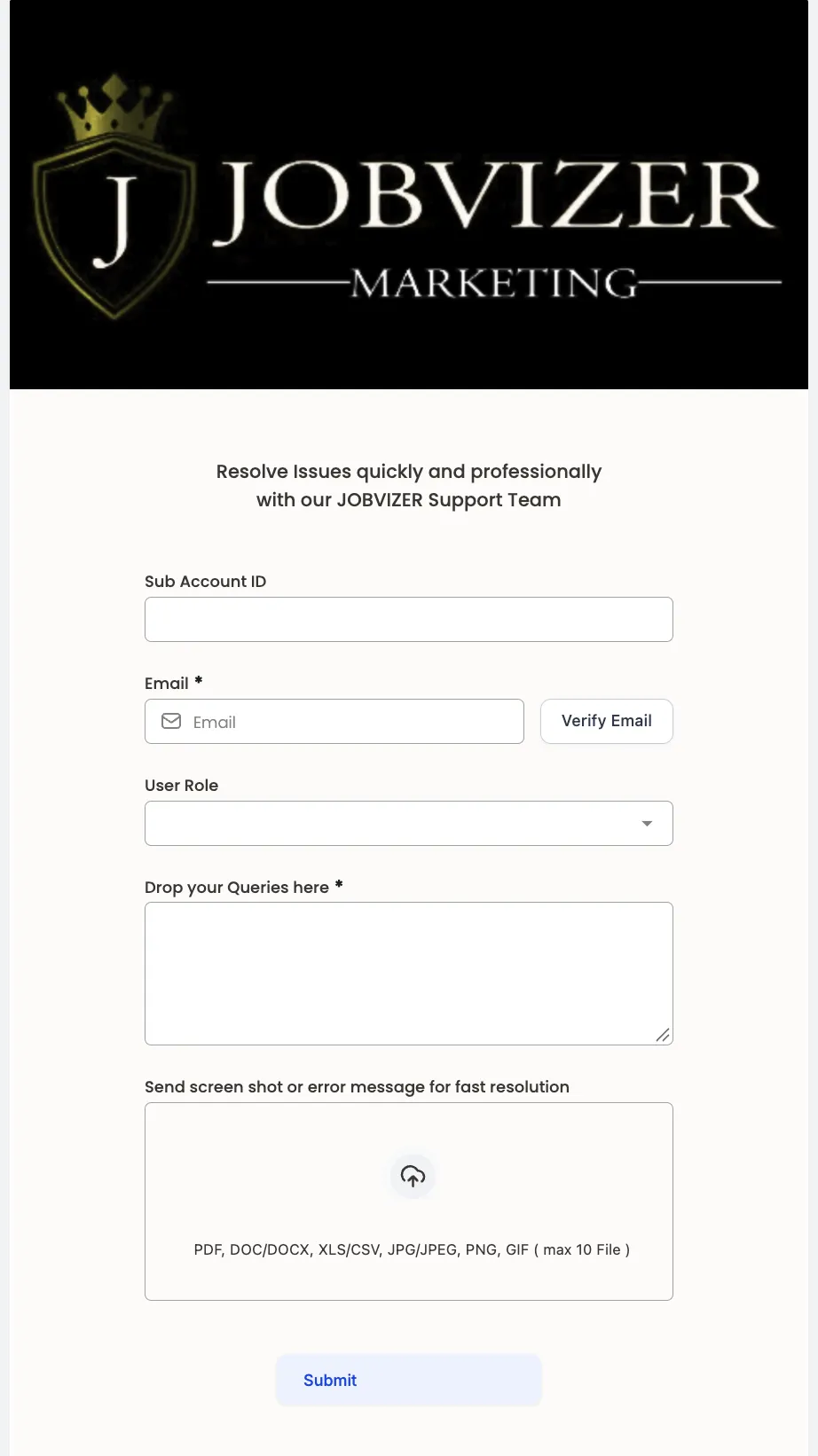
FORMS
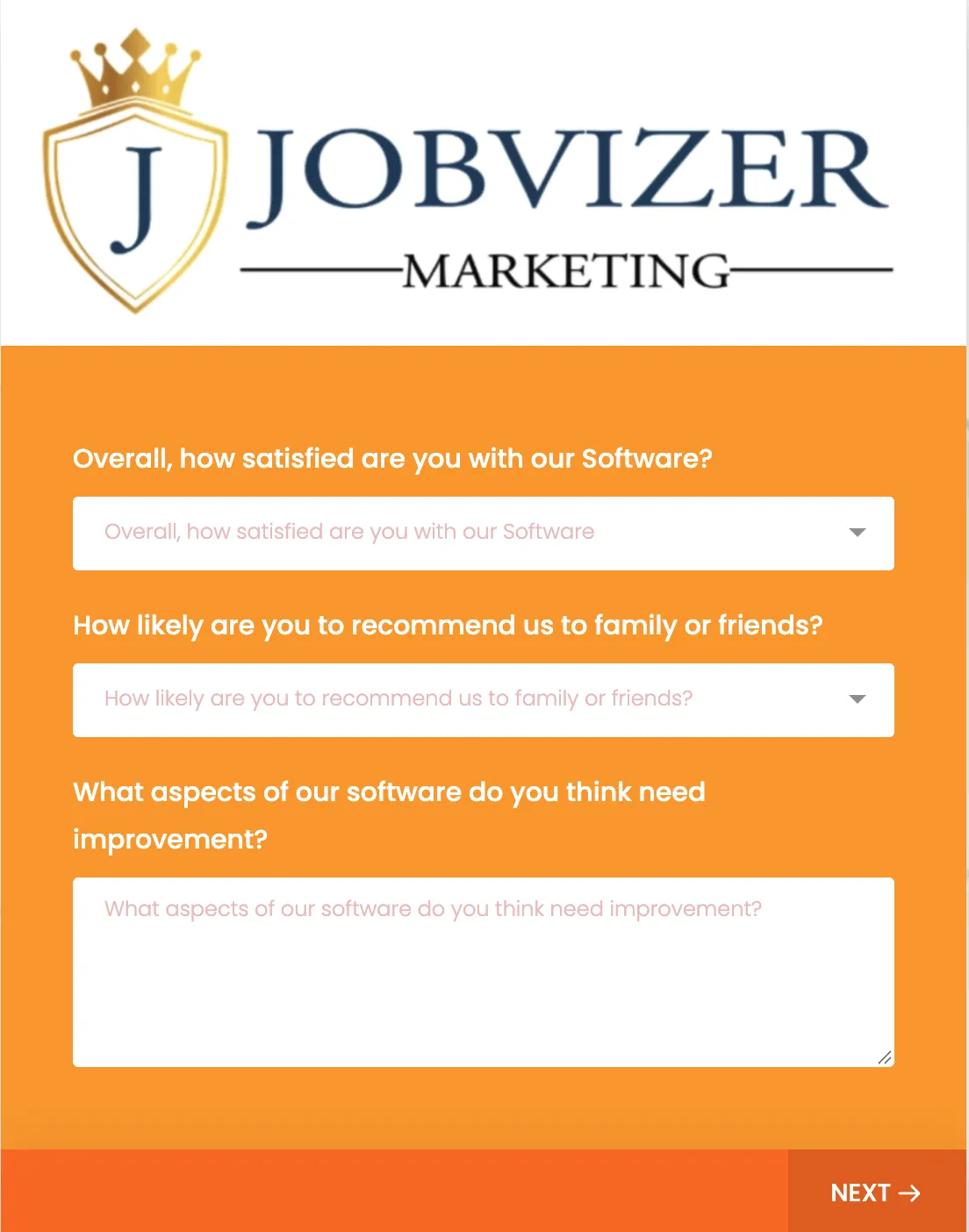
SURVEYS
JOBVIZER MARKETING SUPPORT PORTAL© 2026ALL RIGHTS RESERVED