QR CODES
JOBVIZER CRM VIDEO TUTORIAL
What QR Codes Do
The QR Code Builder generates fully customizable, scan-ready codes that connect a physical touchpoint (print material, signage, a business card, a receipt) to a digital destination, a website, funnel, form, payment link, WhatsApp chat, survey, or quiz, without needing any third-party QR tool. It's a simple bridge from offline to online: someone scans, and lands directly in a specific, trackable experience.
Dynamic URLs: The destination behind a QR code can be updated at any time without needing to reprint or regenerate the actual QR image, useful when a printed flyer or sign needs to stay the same but the underlying campaign or offer changes.
Creating a Standard QR Code
Go to Sites → QR Codes.
Click Create QR Code (or + Create New).
Choose the destination type: Funnel, Form, Payment Link, WhatsApp Chat, Survey, Quiz, or an external website URL.
Select the specific asset (which funnel, which form, etc.) the code should point to.
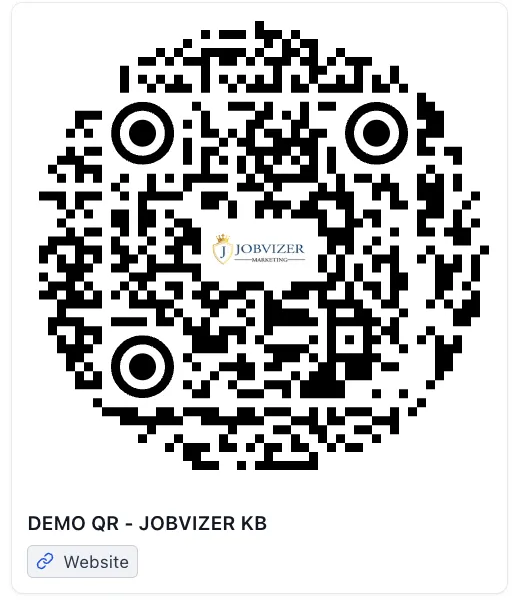
Customize the design: brand colors, shapes, and an embedded logo.
Save, then download in PNG, SVG, or PDF format depending on where it'll be used (digital vs. print).
Cropped/transparent options: QR codes can also be exported with a transparent background, useful when placing the code directly onto existing branded materials without a visible background block around it.
Business Card QR Codes
A specific QR type for building a digital, scannable contact card, ideal for networking and replacing physical business cards.
From Sites → QR Codes, click Create QR Code.
Name it (e.g., "My Digital Business Card").
Select Business Card as the QR type.
Enter complete contact details: phone, email, website, address, and company information.
Customize the design: colors, logo, background transparency, with a real-time preview as changes are made.
Configure Operating Hours Display, toggle which days to show, Sunday is off by default (suited to six-day work weeks) but can be enabled if needed.
Save. Anyone scanning the code can instantly view and save the contact details to their phone.
Review Generation QR Codes
A dedicated QR type specifically for driving customers to leave a review, tied into the reputation management side of the platform.
Go to Reputation → Settings → Reviews QR.
Select the specific review page to link to (Google Reviews, Facebook Reviews, or a custom feedback form).
Click Create QR Code.
Customize with a logo and any accompanying text/message.
Test the code on a couple of different devices to confirm it remains scannable after customization.
Download (PDF is common for print), then add to physical materials like receipts, flyers, or countertop signage.
Tip: Multiple QR codes can be created for different review destinations, useful for running a Google-focused code at the counter and a separate one for a private feedback form, for example.
Common Use Cases
Event signage/print materials — drive attendees to a signup form or landing page with a single scan
Business cards and networking — replace static print details with a dynamic digital card
In-store/receipt review requests — turn a completed transaction into a review with minimal friction
WhatsApp instant chat — a scan opens a pre-filled WhatsApp conversation instead of requiring someone to save a number manually
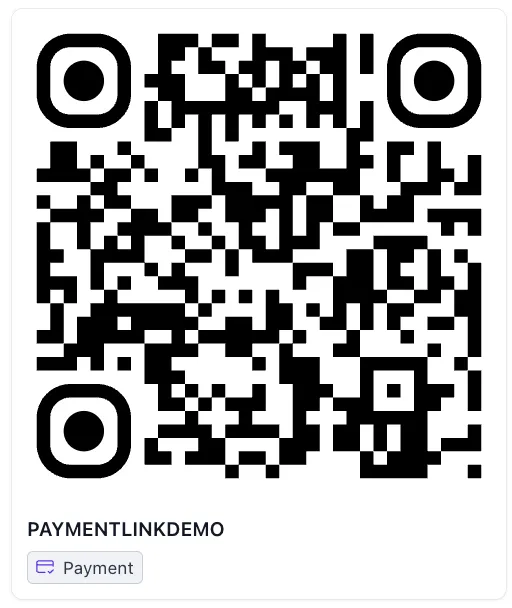
Payment links — a scan takes a customer directly to checkout, useful at a register, a pop-up booth, or on printed materials
JOBVIZER MARKETING SUPPORT PORTAL© 2026ALL RIGHTS RESERVED