INTERNAL CHAT
CLICK BELOW TO WATCH THE WALKTHROUGH
This SOP explains how team members can create and use internal chats and internal comments in the CRM to keep communication private, organized, and tied to the correct records. It ensures team discussions and handoff notes stay visible only to authorized users while supporting efficient collaboration.
INTERNAL CHAT
START A NEW INTERNAL CHAT
Open the CRM and begin from the team chat/message area.
Click the plus (+) icon.
Select Message Teammates to create a private internal conversation.
Choose the teammates you want included in the chat.
Click Create Internal Chat to open the thread.
Optionally, send the first message to establish the purpose of the chat.
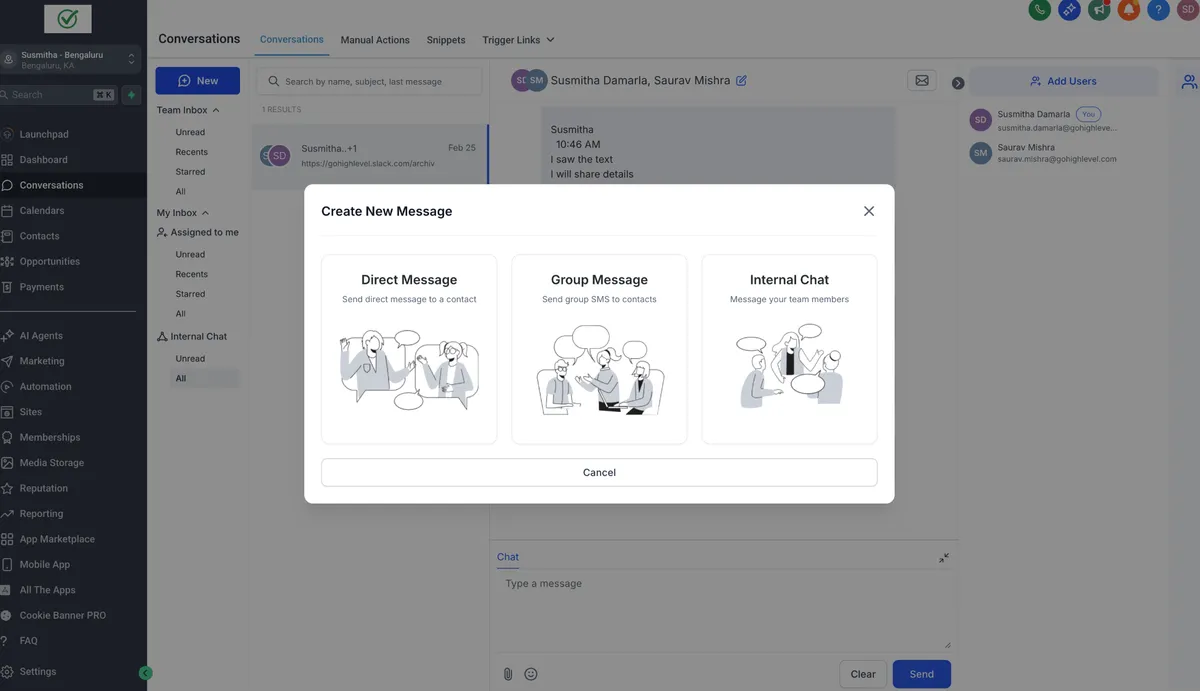
1. Open Conversations and click on New. Select the Internal Chat option.
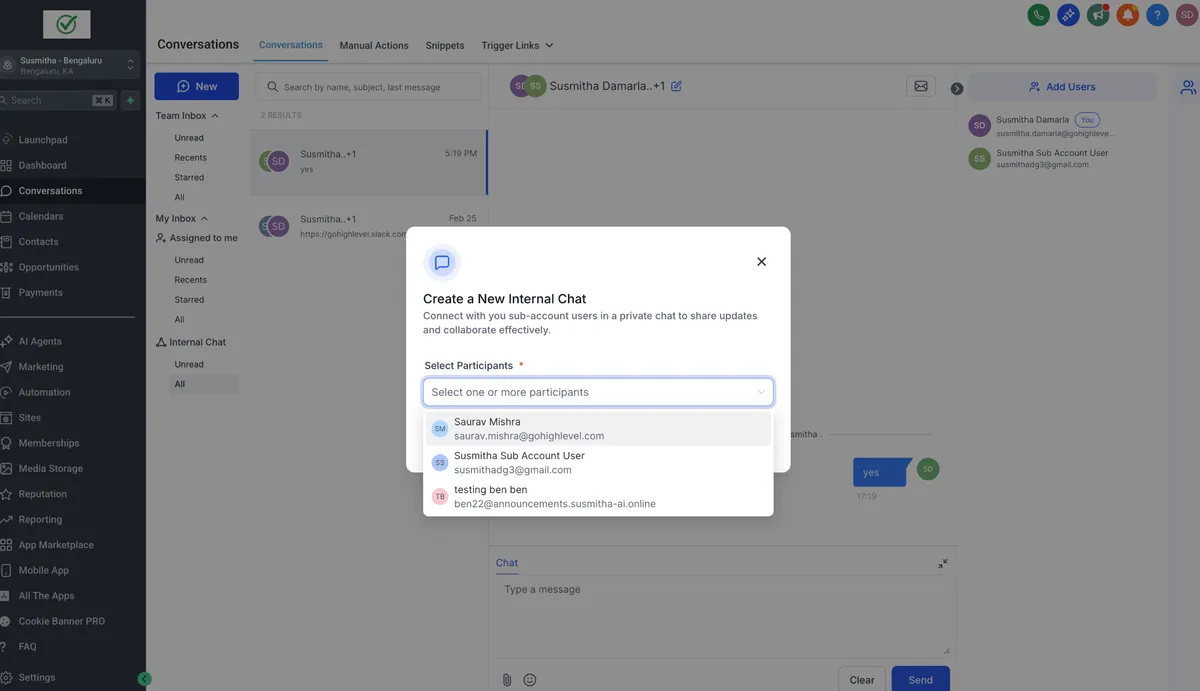
2. Choose the users you want to add to the chat and click Start Chat to initiate the conversation
INTERNAL CHAT RULES & ACCESS
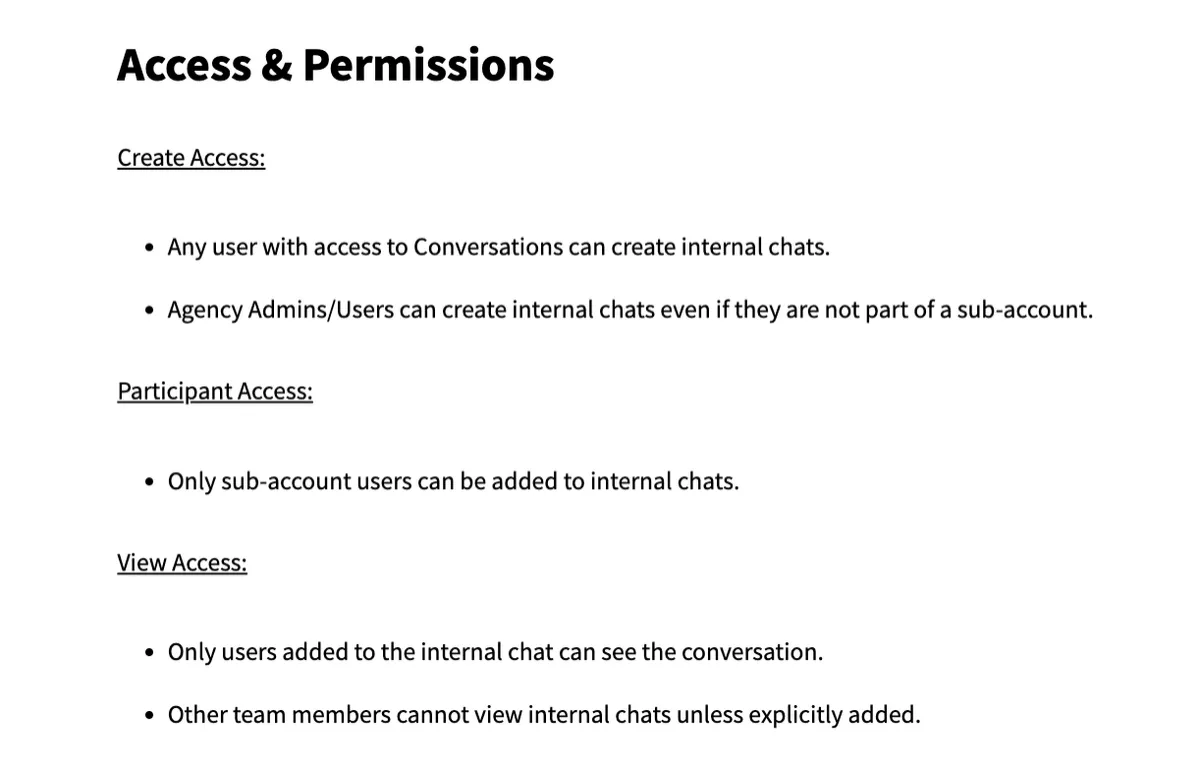
Use internal chat to keep team discussions centralized and linked to records such as:
> Leads
> Deals
> Support cases
> Contacts
When adding new users, choose whether they can see:
> Previous messages, or
> New messages only
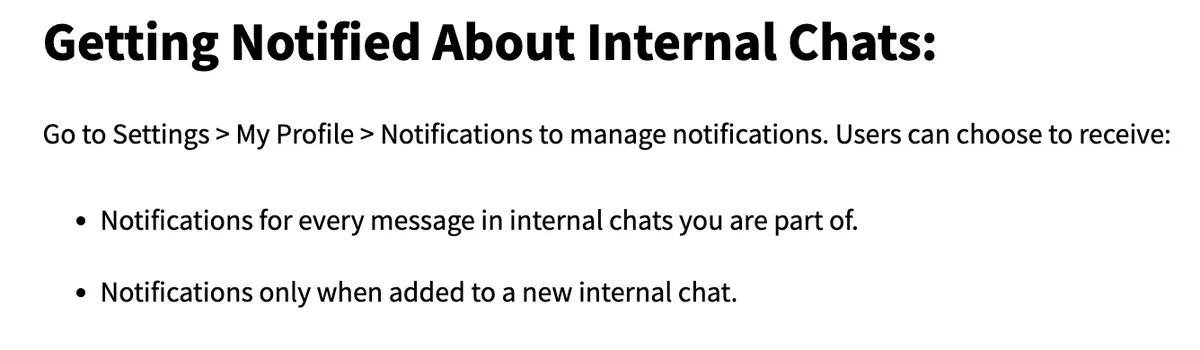
To find active team chats, go to Internal Chat and then Unread.
Note:
1. Internal chat is native to the platform and will not incur any cost.
2. If you "Login As" another user, you will not be able view internal chats, to ensure these remain private.
INTERNAL COMMENT
CREATING AN INTERNAL COMMENT
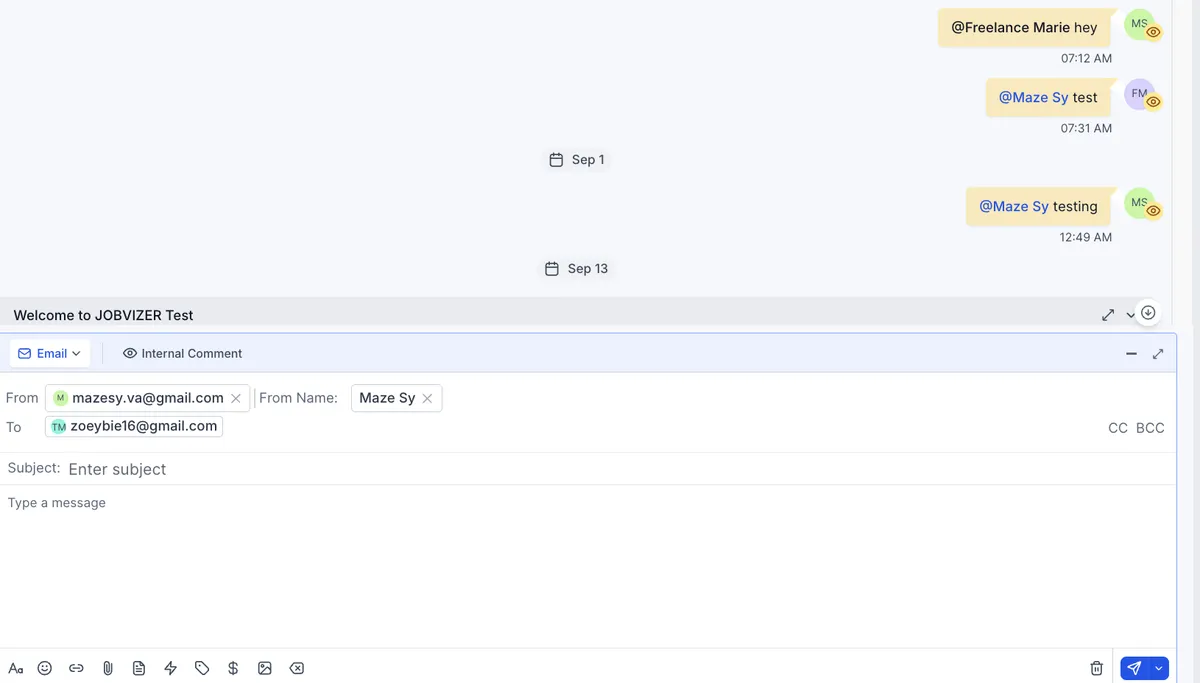
Open the relevant contact or lead thread.
Use internal comments when you need a private note for the team that the contact should not see.
Click the message type selector in the middle of the conversation area.
Select Internal Comment.
Type the instruction, note, or handoff detail you want teammates to see.
Click Send to post the comment.
INTERNAL COMMENTS USE CASE
Use internal comments to provide context, instructions, or next steps for teammates.
Add comments when you need to:
> Clarify a handoff
> Notify a specific teammate or group
> Document internal guidance inside a lead or contact thread
Keep comments concise and actionable so the next person can respond quickly.
Link to Loom
JOBVIZER MARKETING SUPPORT PORTAL© 2026ALL RIGHTS RESERVED