CALENDARS TAB
CLICK BELOW TO WATCH the walkthrough
Calendar Overview
The Calendar let's you create, configure, share, and troubleshoot calendars in JOBVIZER CRM. It ensures team members can set up booking workflows that connect to contacts, pipelines, automations, and notifications with minimal manual follow-up.
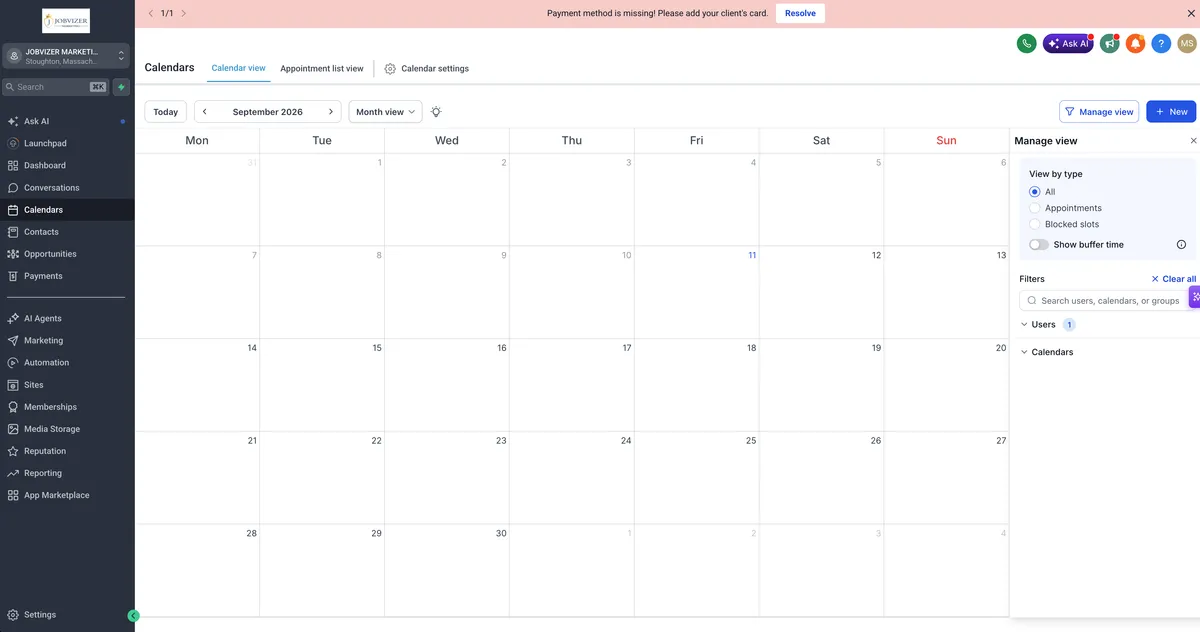
1. Adds/Updates Calendar
Adds/updates the Calendars area in JOBVIZER CRM to support end-to-end booking workflows from calendar setup through customer-facing scheduling.
Introduces calendar group and calendar configuration flows, including support for the 6 main calendar types:
Personal Booking
Round Robin
Class Booking
Collective Booking
Event Calendar
Service Booking
2. Calendar Configuration
Expands calendar configuration to support:
> Staff/User assignment
> Equal distribution of meetings (Round Robin)
> Availability management
Booking rules such as:
Duration, interval, minimum notice, date range, buffer times, and per-slot caps
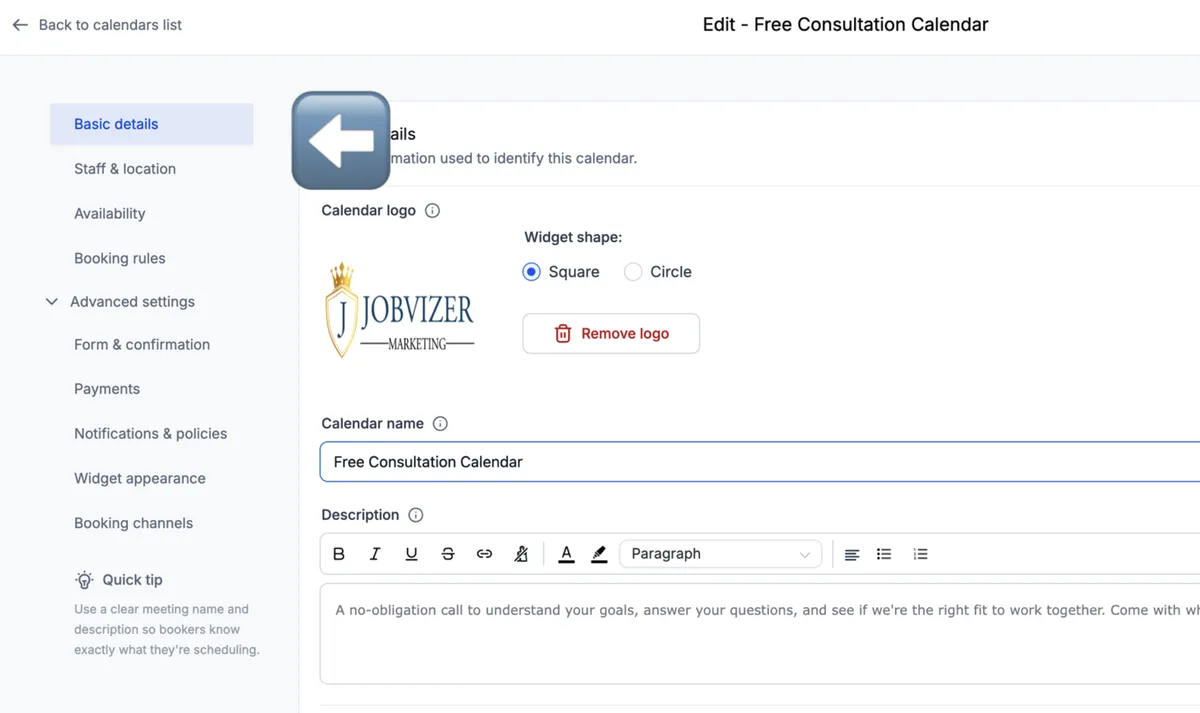
3. Calendar Basic & Advance Settings
Basic Details
Staff & Locations
Availability
Custom forms and confirmation fields
Payment collection toggles
Notification policies
Widget appearance and booking channel configuration
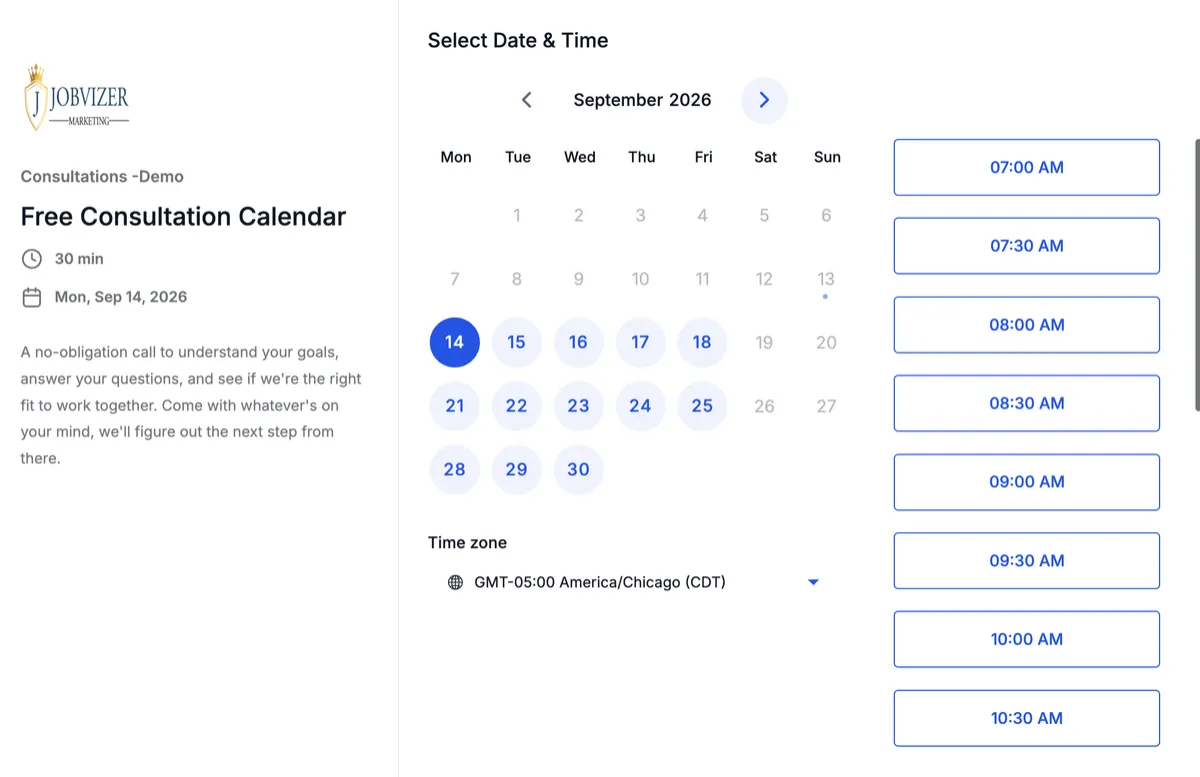
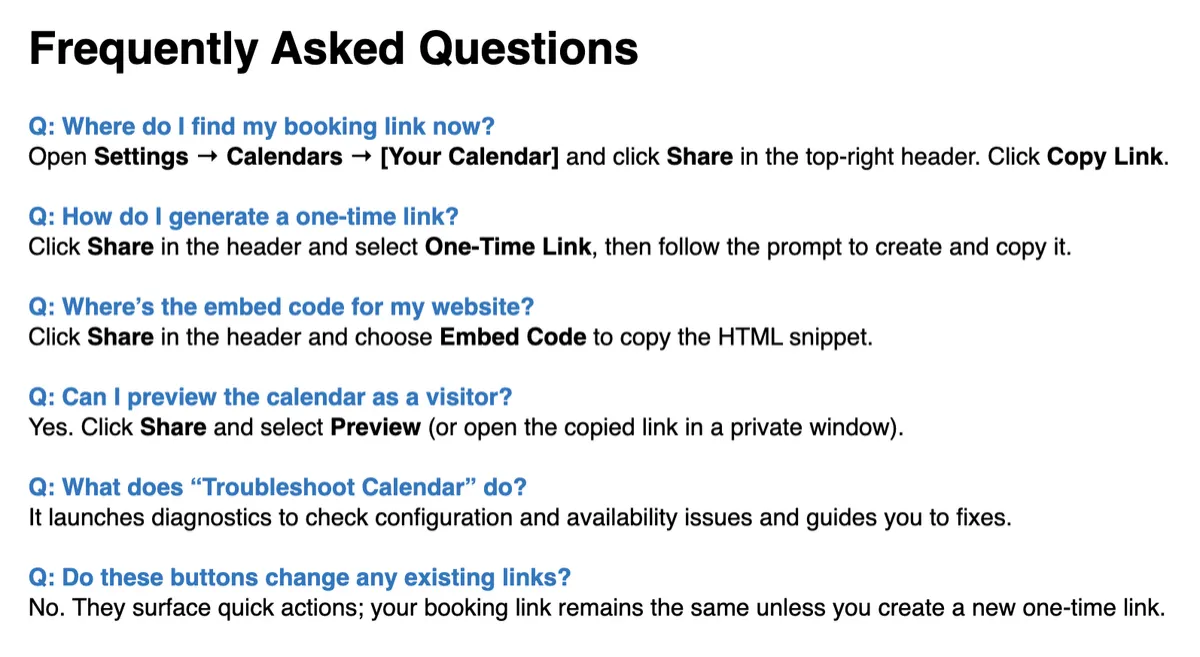
Includes shareable scheduling link behavior so users can preview the customer-facing booking page and copy the correct public link.
4. Booking Rules
Set the meeting duration to define how long each appointment lasts.
Set the meeting interval to control the spacing between available booking times.
Configure minimum scheduling notice to prevent last-minute bookings.
Set the date range to limit how far into the future clients can book.
Add pre-buffer time to reserve time before appointments.
Add post-buffer time to reserve time after appointments.
Set maximum bookings per day to cap daily appointments
.
Set maximum bookings per slot if more than one person may book the same time.
Use Look Busy if you want the calendar to appear fuller than it is.
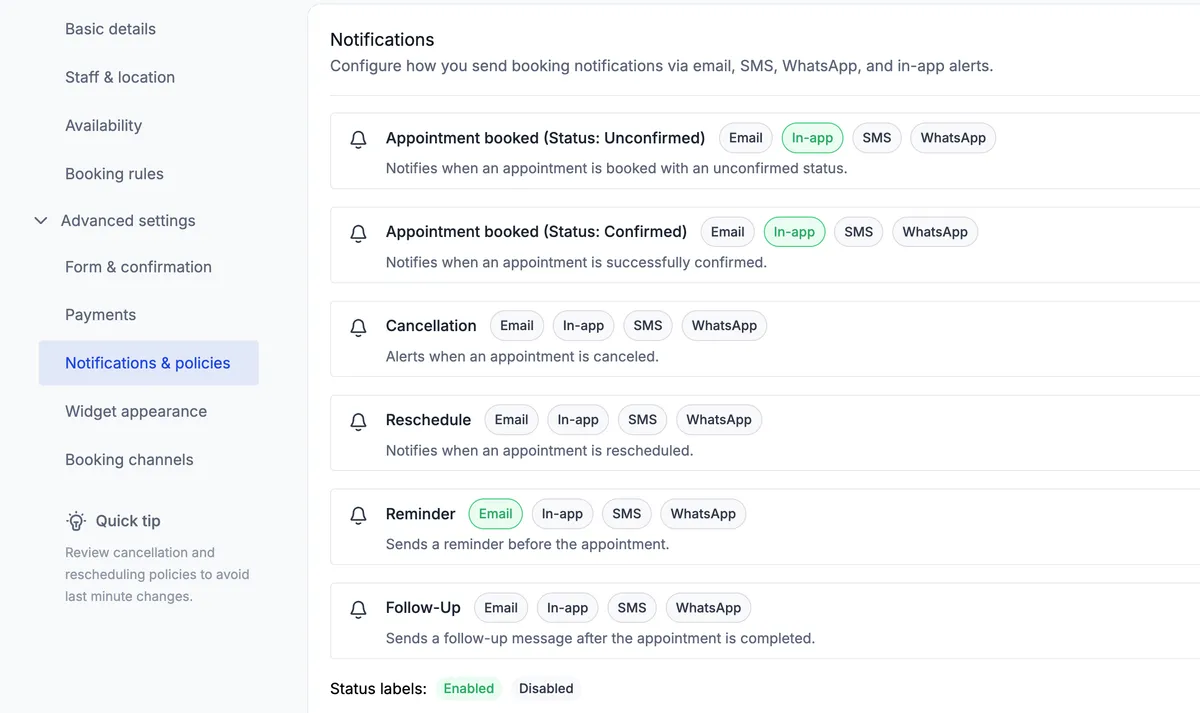
5. Configure Notification Policies
Set notification rules directly in the calendar.
Configure appointment booked/confirmed notifications to acknowledge the booking.
Add cancellation notifications to inform both parties when a booking is canceled.
Add reschedule notifications to confirm the new appointment time.
Set up reminders to send before the appointment at the desired intervals.
Configure follow-up messages to send after the appointment for next steps, feedback, or re-engagement.
Add any final details such as a call link or address.
6. Common Issues & Important Notes
No available slots showing:
Usually caused by a minimum notice period set too long, or availability hours that don't match the calendar's actual time zone.
Reminder texts or emails not sending:
Typically one of three causes: messaging isn't fully registered/verified yet, the contact's number or email on file is invalid, or the reminder automation itself is paused.
Double-booked slots:
Almost always a missing or incomplete two-way sync with an external calendar.
Buffer time and minimum notice:
Are easy to overlook but directly affect how "available" the business appears to leads, worth double-checking on every new build.
Recommend testing the full booking flow before sharing the Calendar Link or Activating it to confirm efficiency and accuracy.
JOBVIZER MARKETING SUPPORT PORTAL© 2026ALL RIGHTS RESERVED