SNIPPETS & TRIGGER LINKS
CLICK BELOW TO WATCH the walkthrough
Creating and Using Snippets and Trigger Links in JOBVIZER
This Page explains how to create reusable email/text snippets and trigger links in JOBVIZER, then insert them into conversations for consistent communication and automation. It is designed to help team members send standardized messages quickly and correctly.
1. What are Snippets
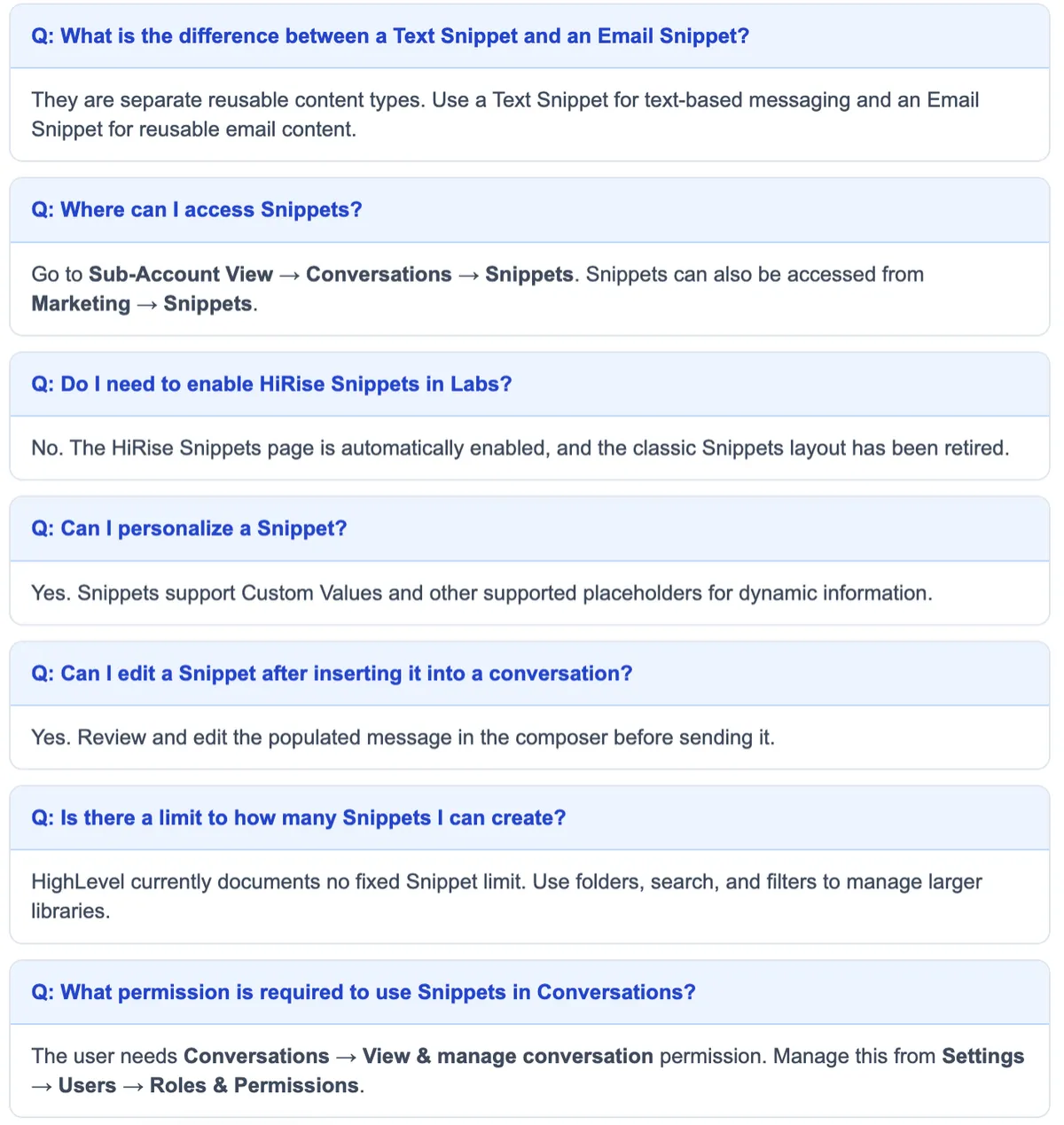
Snippets are reusable blocks of text or email content.
Use them for repetitive communication such as:
Booking confirmations
FAQ responses
Follow-up scripts
Snippets help keep messaging consistent across the team.
2. Create and Save Snippets
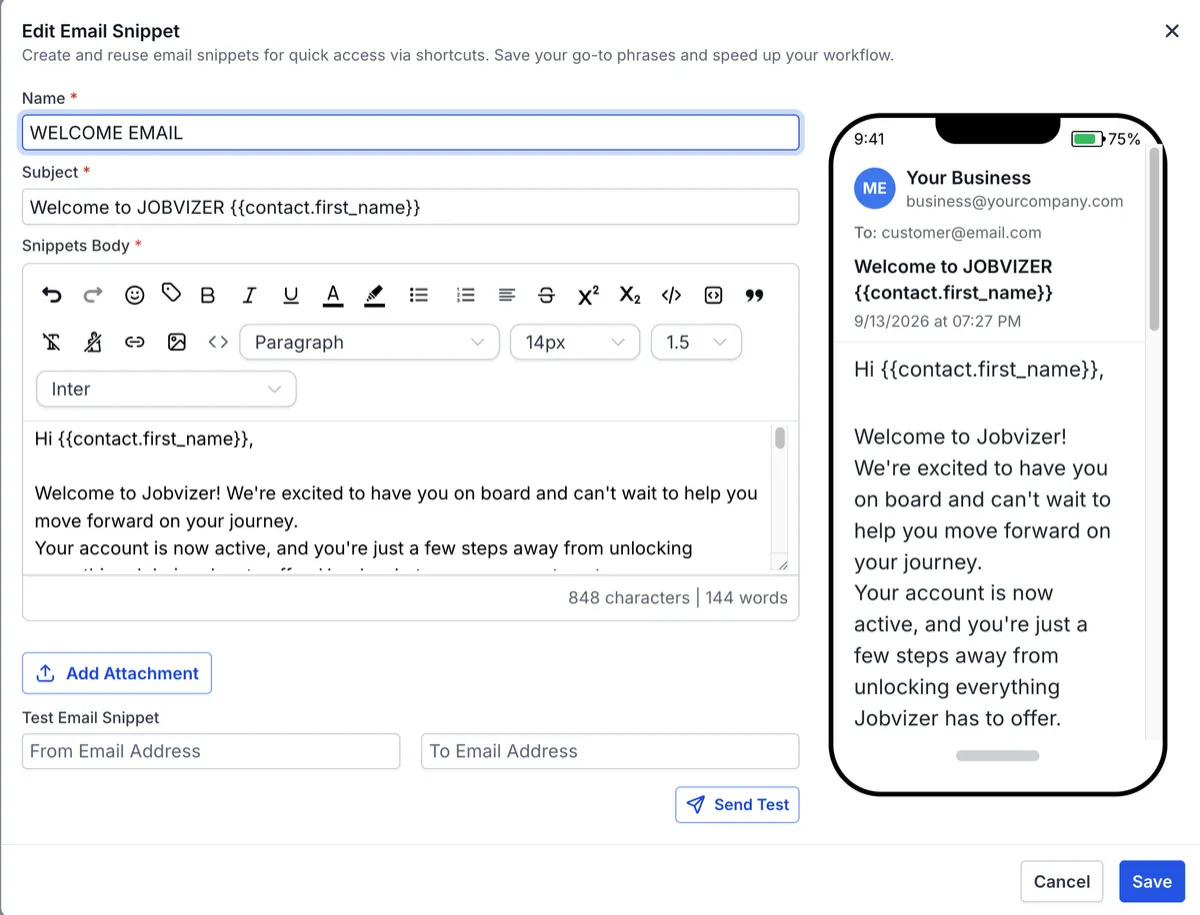
Click the snippet you want to create or edit.
Enter the repeated message content you want to reuse.
Add a clear snippet name.
If it is an email snippet, include a subject line.
Save the snippet so it is available for future use
3. Insert a snippet into a conversation
Return to the relevant conversation.
Open a new message to the contact.
Hover over the icons at the bottom of the message area.
Click the Snippets icon.
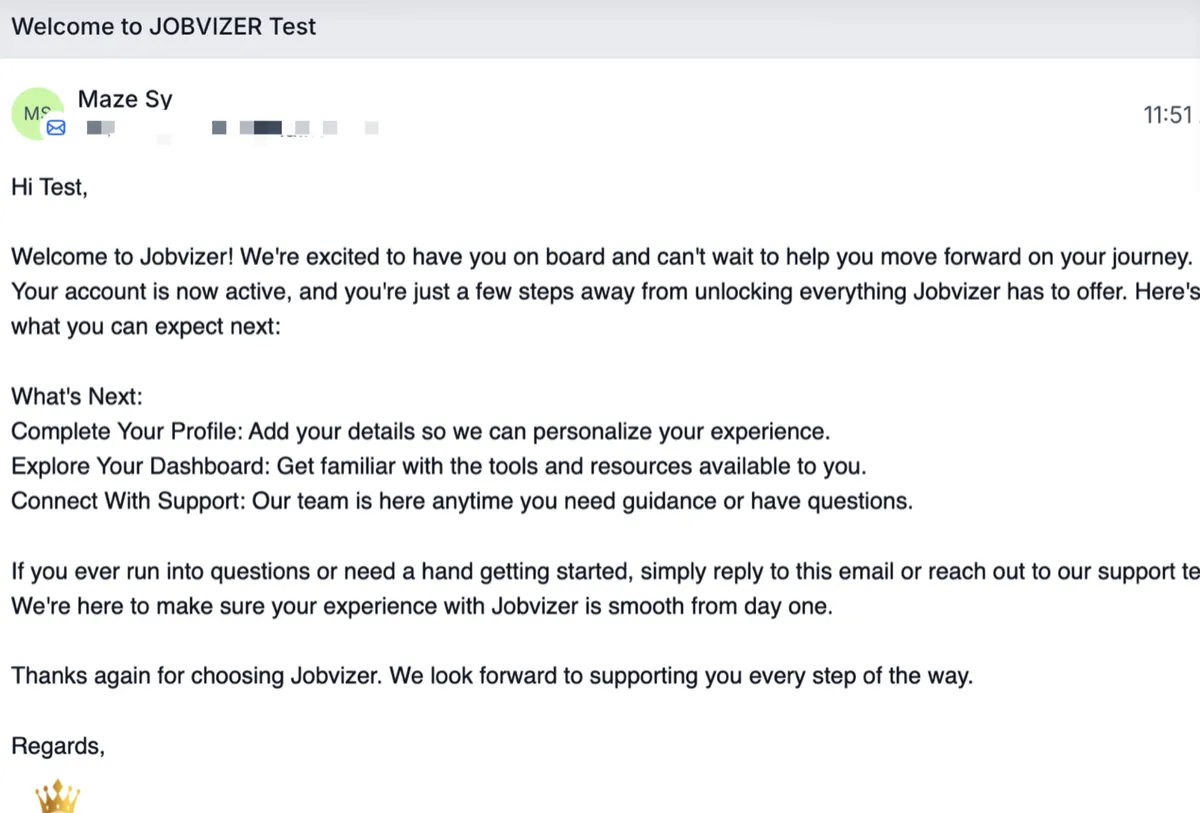
Select the desired snippet, such as a welcome email.
Send the message and confirm it appears correctly in the conversation thread.
4. Use a text snippet for SMS-style messaging
Open a conversation with a contact that has a phone number.
Click the message field and hover over the bottom icons.
Select the SMS snippet option.
Choose the appropriate text snippet and send it.
Verify the message is inserted and displayed correctly.

1. What are Trigger Links
Trigger links
are trackable URLs that do two things at once when someone clicks them: they send the contact to a destination page (a booking calendar, a sales page, a resource download, etc.), and they fire a background action at the same time, like adding a tag, updating an opportunity, unsubscribing them
from a channel, or starting a workflow.
To the person clicking, it looks and behaves exactly like a normal link.
Behind the scenes, the click gets logged on the contact's activity timeline and can be used to trigger or branch automations.
2. Common Uses
Starting a workflow:
if someone clicks this link, enroll them in this sequence
Branching a workflow:
Wait 3 days for a click; if they click, go down path A, if not, go down path B
Interest tagging:
Clicking a specific offer link tags the contact as interested in that offer
Unsubscribe/opt-out:
A click can automatically disable further messages on that channel
They work across SMS, email, and can also be placed in DMs or on funnel/website pages, essentially turning a passive click into a live signal the system can act on immediately, instead of a dead end.
3. Create a Trigger Link
Use trigger links when you want a click to start an automation.
Trigger links can:
Apply a tag to a contact
Move a contact into a workflow
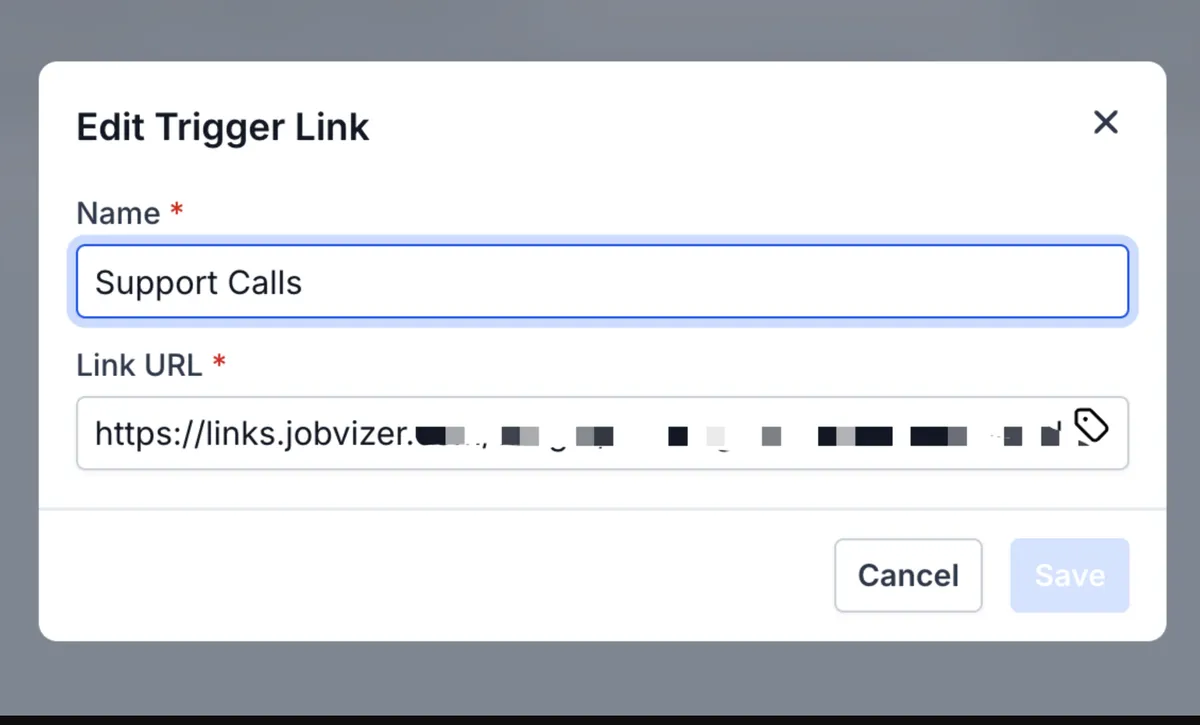
In the trigger link setup area, click Add.
Enter a name for the link.
Paste the destination URL (for example, a calendar link).
Save the trigger link.

4. Insert and test a trigger link in a message
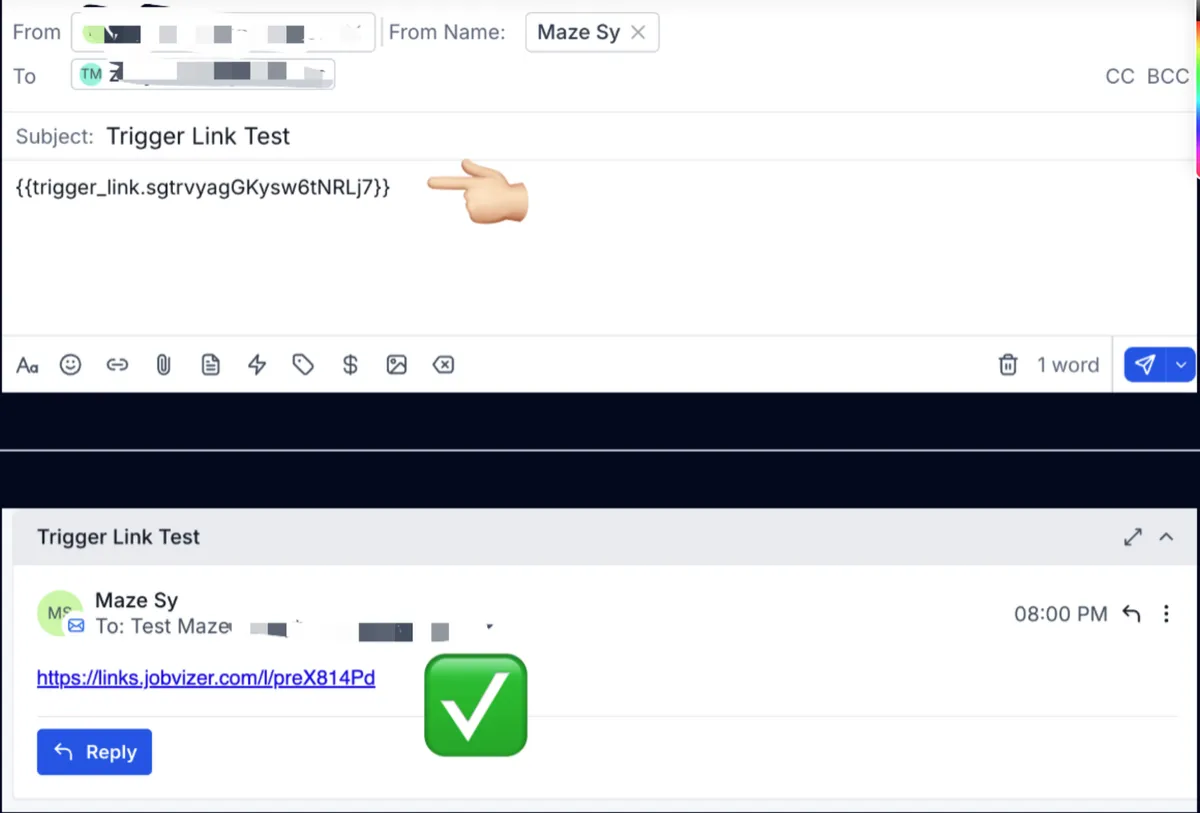
Go back to the conversation and start a new message.
Hover over the bottom icons and select the Trigger Link icon.
Paste the trigger link into the message.
Send the message.
Confirm the link appears in the message as a clickable trigger link.
Test the link by clicking it to ensure it opens the correct destination, such as a calendar page.
5. Cautinary Notes
Ensure the correct snippet type is selected: email snippets for email conversations and text snippets for SMS conversations.
Verify the contact has the required communication detail before sending (for example, a phone number for SMS).
Double-check snippet content, subject lines, and trigger link URLs before saving or sending.
Test trigger links after sending to confirm they route to the correct destination and automation behavior.
Use clear naming conventions so team members can quickly identify the right snippet or link.
6. Tips for Efficiency
Create standard snippets for common replies to reduce typing and improve consistency.
Keep snippet names descriptive, such as "Welcome Email" or "Booking Confirmation."
Reuse trigger links for frequently used destinations like calendars or booking pages.
Review and update snippets regularly to keep messaging current.
Train all team members to use the same snippets and trigger links to maintain a consistent customer experience.
JOBVIZER MARKETING SUPPORT PORTAL© 2026ALL RIGHTS RESERVED